Device Code Flow
The OAuth 2.0 Device Authorization Grant (RFC 8628), referred to here as the Device Code flow, lets a vehicle owner authenticate on an input-constrained device (or any device where opening a full browser is impractical). The device shows a short code; the user approves it from a browser on their phone or computer.
The Device Code flow is currently available to vehicle owners / customers only. Third-party developers use the Authorization Code flow; fleet operators use Client Credentials.
All requests go to the authorization server
(https://auth.jlr-vcdp.com/realms/public), not the API gateway.
Overview
Prerequisites
- A client created in the customer portal, configured with the vehicles and data categories it may access, a callback URI, and your uploaded public certificate. See Vehicle Owners for the portal steps.
- The private key matching that certificate, to sign the client assertion.
Step 1: Request device and user codes
Generate PKCE parameters first (same as the Authorization Code flow), then request codes:
curl -X POST https://auth.jlr-vcdp.com/realms/public/protocol/openid-connect/auth/device \
  -H "Accept: application/json" \
  -H "Content-Type: application/x-www-form-urlencoded" \
  -d "client_id=YOUR_CLIENT_ID" \
  -d "response_type=device_code" \
  -d "code_challenge=CODE_CHALLENGE" \
  -d "code_challenge_method=S256"
There is no scope parameter - the device inherits the access its client was
configured with at credential-creation time.
Response:
{
  "device_code": "GmRh...device...code",
  "user_code": "WDJB-MJHT",
  "verification_uri": "https://auth.jlr-vcdp.com/realms/public/device",
  "verification_uri_complete": "https://auth.jlr-vcdp.com/realms/public/device?user_code=WDJB-MJHT",
  "expires_in": 900,
  "interval": 5
}
| Field | Meaning |
|---|---|
device_code | Used by the device to poll for tokens in Step 3. |
user_code | The short code the user enters in their browser. |
verification_uri | Page where the user authorises the device. |
verification_uri_complete | Same page with the user_code pre-filled. |
expires_in | Lifetime (seconds) of the device_code / user_code. |
interval | Minimum seconds to wait between polling requests in Step 3. |
Step 2: User authorises the device
On an input-constrained device, we recommend rendering the verification_uri_complete
value as a QR code on screen. The user can scan it with their phone to open the
verification page (with the user_code already filled in) on a device that has a
full browser and keyboard - a much smoother experience than typing the URL and code
by hand.
2a. Enter the code
Direct the user to open verification_uri in a browser, sign in with their JLR
account, and enter the user_code. (You can also offer the
verification_uri_complete link to pre-fill the code.)
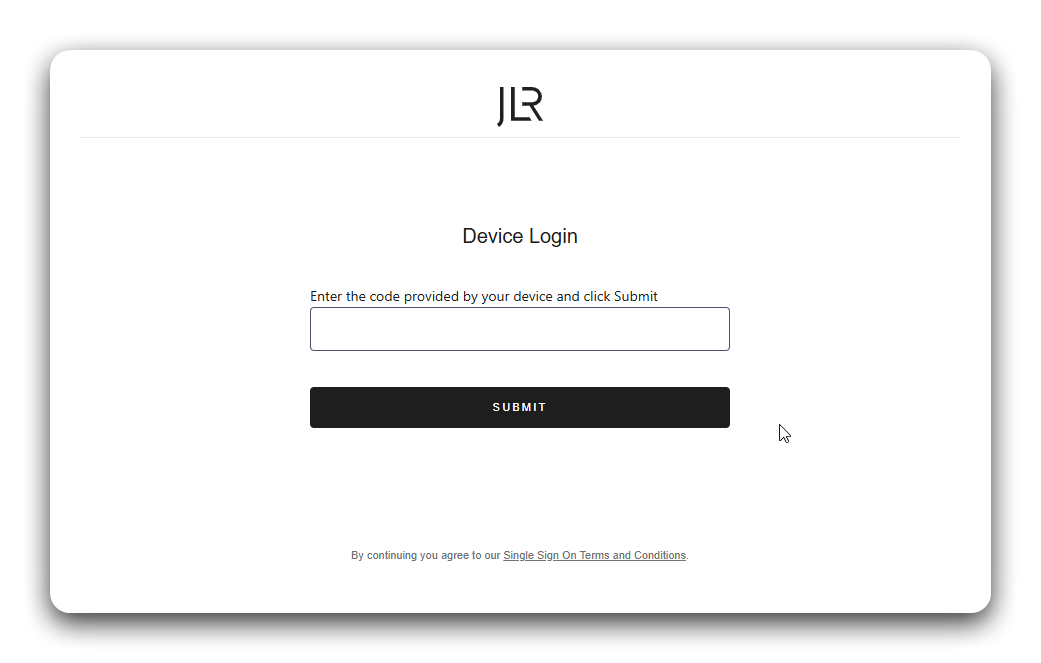
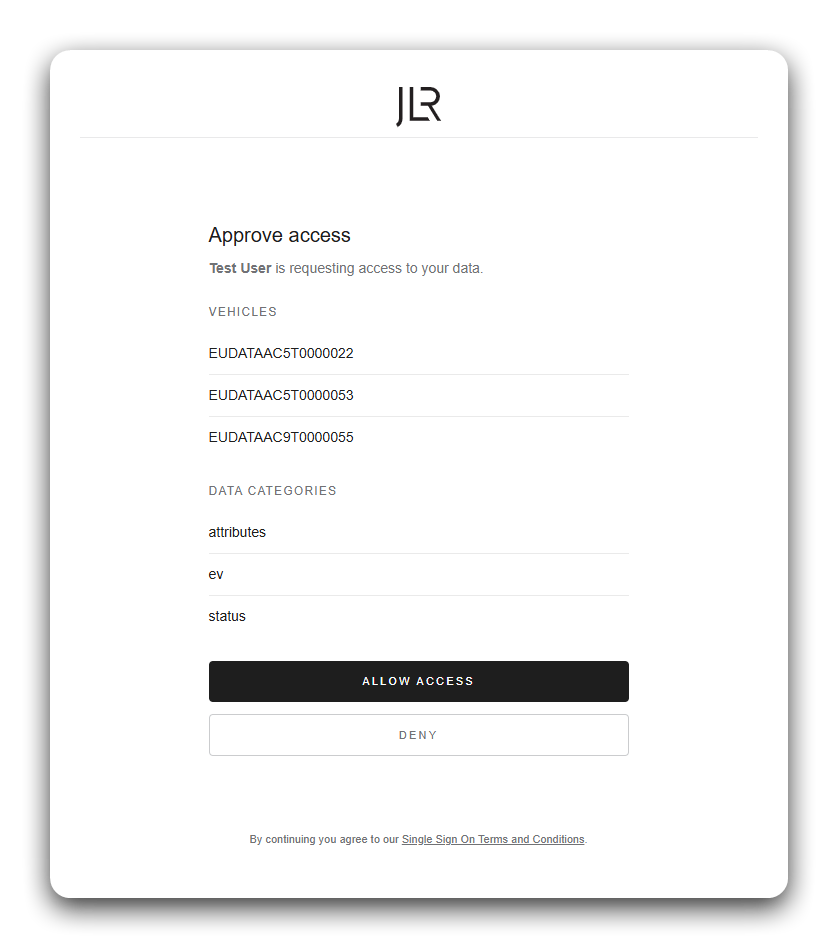
2b. Accept consent
The user is then shown the vehicles and data categories the device is requesting, and must approve them to authorise the device. Once they accept, the device is authorised.
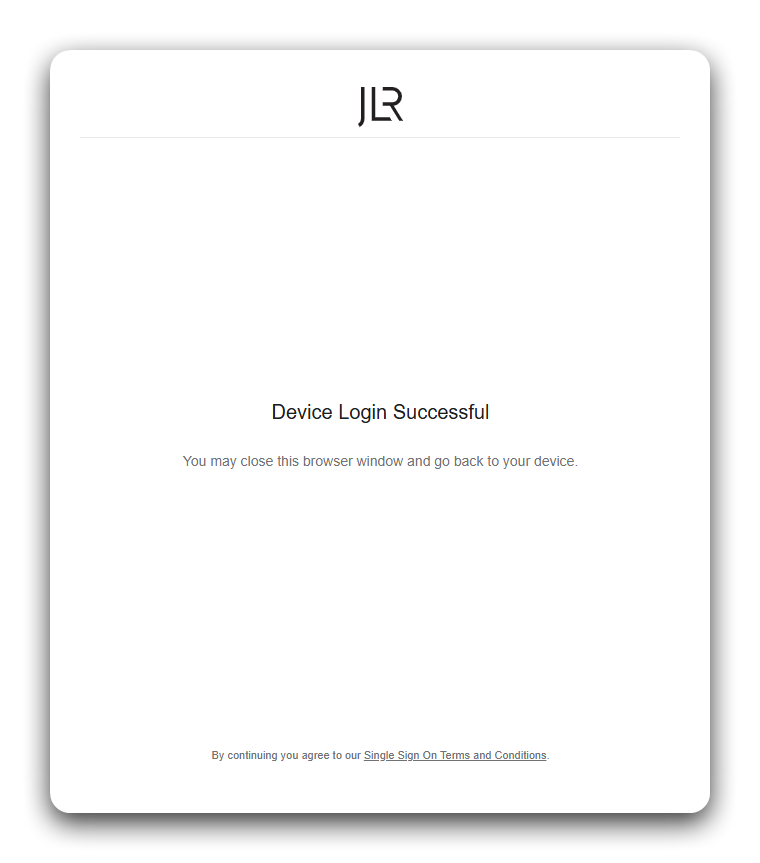
Once consent is granted, the user is shown a confirmation screen and can close the browser window - the device completes authorisation by polling for tokens in the next step.
Step 3: Poll for tokens
While the user authorises, the device polls the token endpoint, waiting at least
interval seconds between attempts:
curl -X POST https://auth.jlr-vcdp.com/realms/public/protocol/openid-connect/token \
  -H "Content-Type: application/x-www-form-urlencoded" \
  -d "client_id=YOUR_CLIENT_ID" \
  -d "client_assertion_type=urn:ietf:params:oauth:client-assertion-type:jwt-bearer" \
  -d "client_assertion=YOUR_SIGNED_ASSERTION_JWT" \
  -d "device_code=YOUR_DEVICE_CODE" \
  -d "grant_type=urn:ietf:params:oauth:grant-type:device_code" \
  -d "code_verifier=CODE_VERIFIER"
Until the user finishes, the endpoint returns a pending status:
{ "error": "authorization_pending" }
Handle these standard RFC 8628 responses while polling:
error | What to do |
|---|---|
authorization_pending | Keep polling at the current interval. |
slow_down | Increase your polling interval (add 5 seconds) and continue. |
access_denied | The user declined. Stop polling. |
expired_token | The device_code expired. Restart from Step 1. |
On success you receive tokens:
{
  "access_token": "eyJhbGciOiJSUzI1NiIs...",
  "token_type": "DPoP",
  "expires_in": 3600,
  "refresh_token": "eyJhbGciOiJSUzI1NiIs...",
  "refresh_expires_in": 1209600
}
Step 4: Use and refresh your tokens
- Use the
access_tokenagainst the REST API with a DPoP proof on each request. - Use the client-credentials token for MQTT streaming (streaming does not use DPoP).
- Refresh before expiry using the refresh token - see Tokens & Refresh. When the refresh token expires, re-run the Device Code flow from Step 1.
Next steps
- Tokens & Refresh - Keep your session alive.
- REST API - Make authenticated calls.
- Vehicle Owners - The full customer journey.